



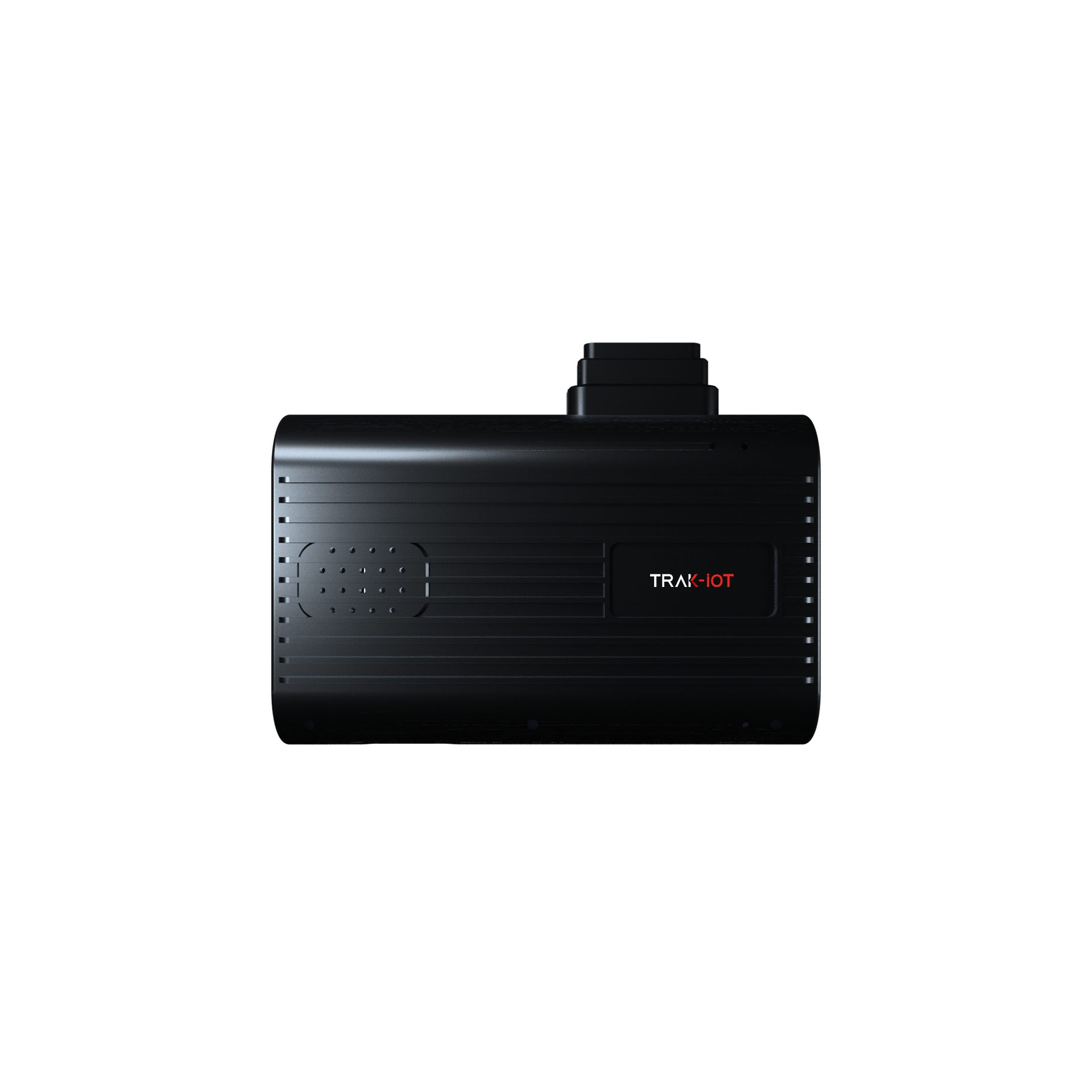
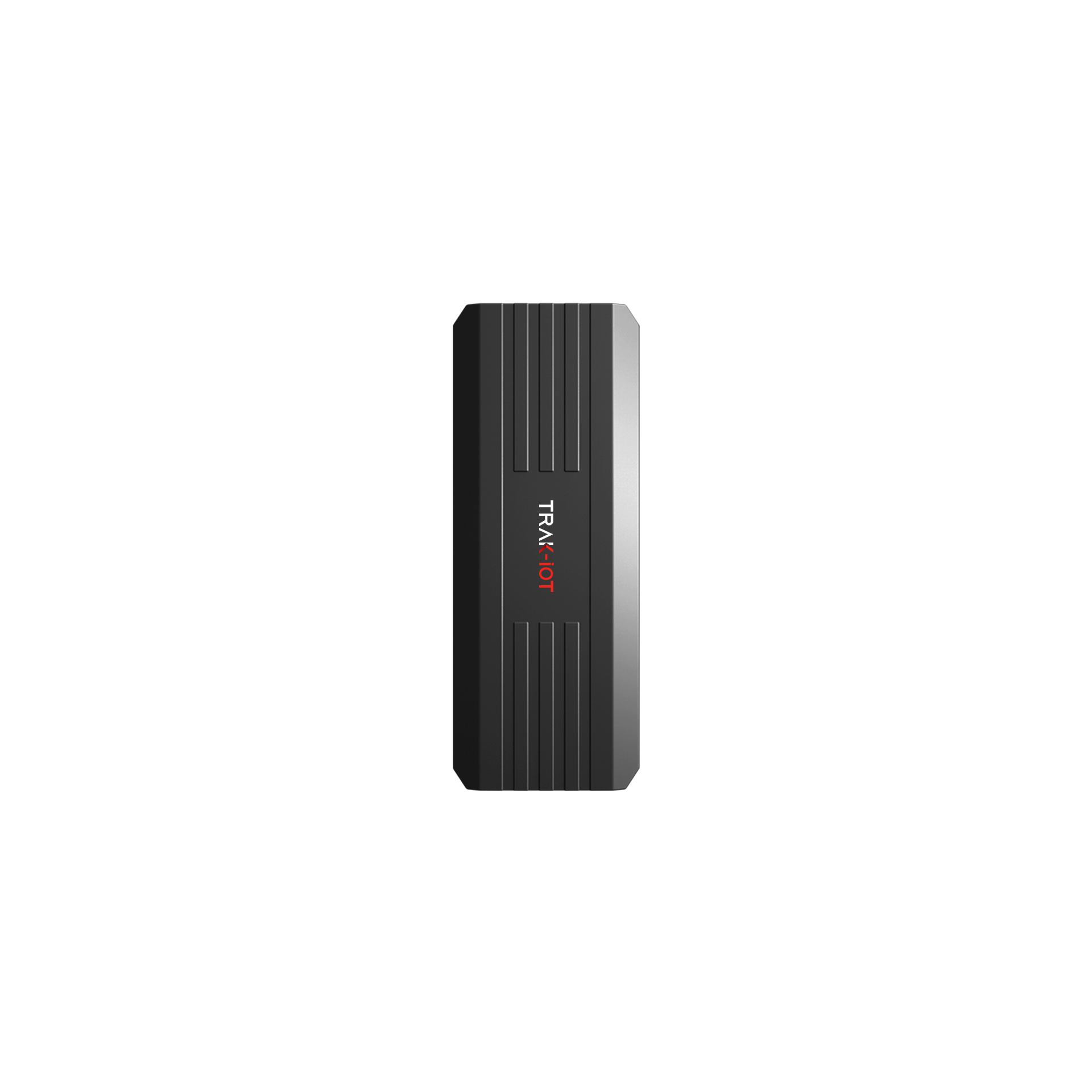



TRAK-IOT is proud to partner with leading tracking platform GPS-Trace, offering our users enhanced flexibility and extended functionality. By integrating with this powerful software solution, our in-vehicle tracking devices deliver a seamless, comprehensive telematics experience. Users can leverage GPS-Trace for its robust real-time monitoring and advanced reporting, as well as its flexible billing system and intuitive statistics dashboards. The collaboration ensure that TRAK-IOT customers can access superior tracking, insightful analytics, and efficient operational control through the software that best fits their specific needs, all powered by our reliable hardware.
Track Your Trak-IoT Devices Easily with GPS-Trace
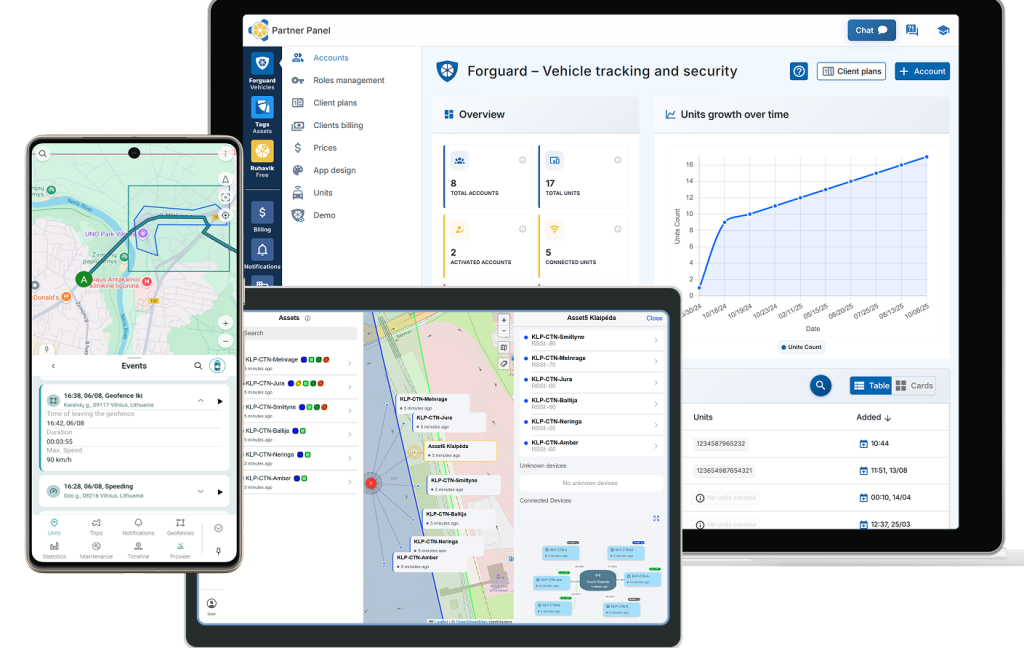
GPS-Trace is a GPS tracking platform designed for individuals and small businesses. It focuses on quick setup and ease of use, and is available for TSPs, tracker dealers and resellers, local integrators etc.
The platform offers two key directions:
Supported through Forguard(for business use) and Ruhavik (for personal use). It fully supports Trak-IoT GPS devices, ensuring stable connectivity and seamless integration.
Available via the Tags application.
For those who run a business, there is also a solution with client/device/billing management capabilities Stripe/PayPal, white-labeling options and API, AI assistance on your language, 24/7 as well as an app for end clients.
📩 For more information: business@gps-trace.com or visit https://business.gps-trace.com/
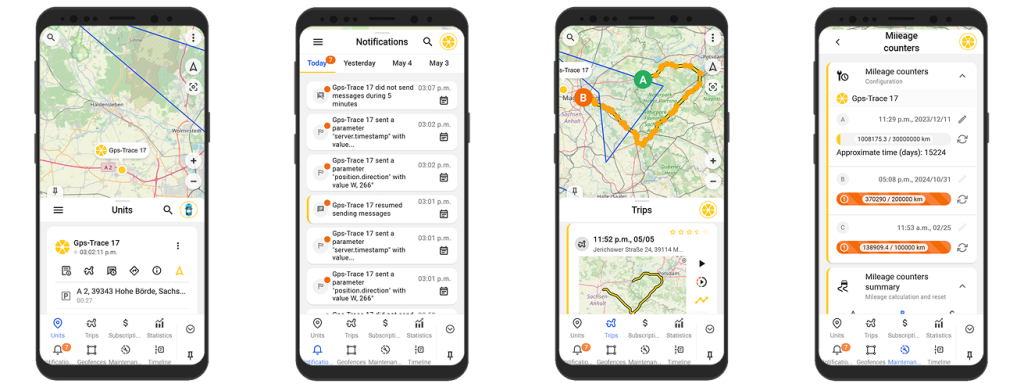
With the Ruhavik app and Trak-IoT device, users can track vehicles in real time, view trip history, get notifications and set up a geofence— all with a free plan.
Advanced features like extended history, advanced notifications, location sharing, and remote commands are available with one of subscription plans.
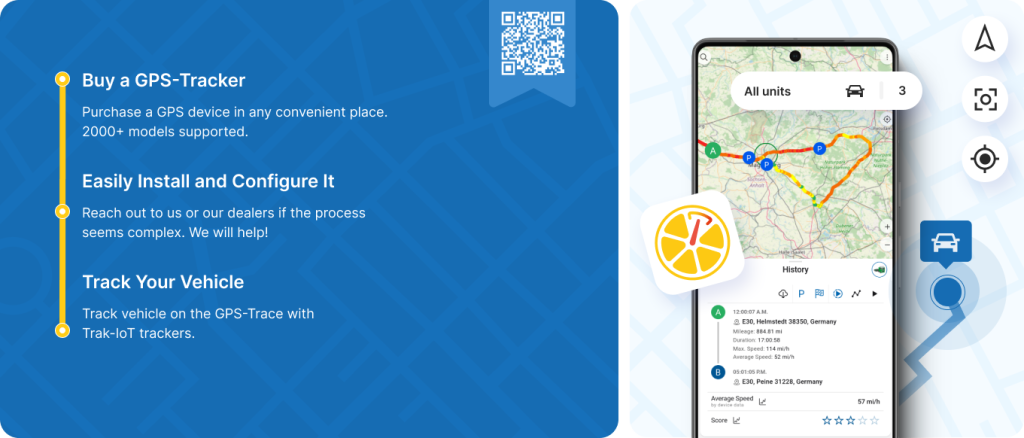
Getting Started
Available on:
- Google Play
- App Store
- Or use the Web version
- Create a new account
- Tap “+”to add a unit
- Select your tracker type (model) and enter the ID/IMEI
- Save the settings
Set the following on your tracker:
- Server and Port: Use the values from the Hardware tab in the unit settings.
SERVER,0,ip,port,0#
The meanings of the last figure: “0”means TCP, “1” UDP
Example: SERVER,0,22.22.222.222,2222,0#
- Time Zone: Set to UTC 0
GMT,A,B,C#
A = E or W. E means eastern time zone; W means western time zone; Default in E
B = 0~12. Time zone, default in 8
C = 0/15/30/45. Quarters of time zone, default in 0
Example: GMT,E,0,0#
- APN Settings: Use your SIM card provider’s APN (username and password if required)
APN,A,B,C#
A = APN, get know it as per the sim card supplier
B = user name. Leave it blank with no space if absent.
C = passwords. Leave it blank with no space if absent.
Please remain the commas even user name and passwords absent to keep the command complete
Example 1: APN,cmnet,aaa,bbb# Example 2: APN,cmnet,,#
These parameters are usually configured via SMS commands. Refer to your tracker’s user manual for exact commands.
Once configured and connected, your tracker will start sending data, and you’ll see your vehicle in the Ruhavik app.
Ruhavik features
Learn more about Ruhavik features here: https://ruhavik.com/en/help/ruhavik/user-menu
Learn More about GPS-Trace
CLICK HERECheck TRAK-IOT devices connected to GPS-Trace
CLICK HERE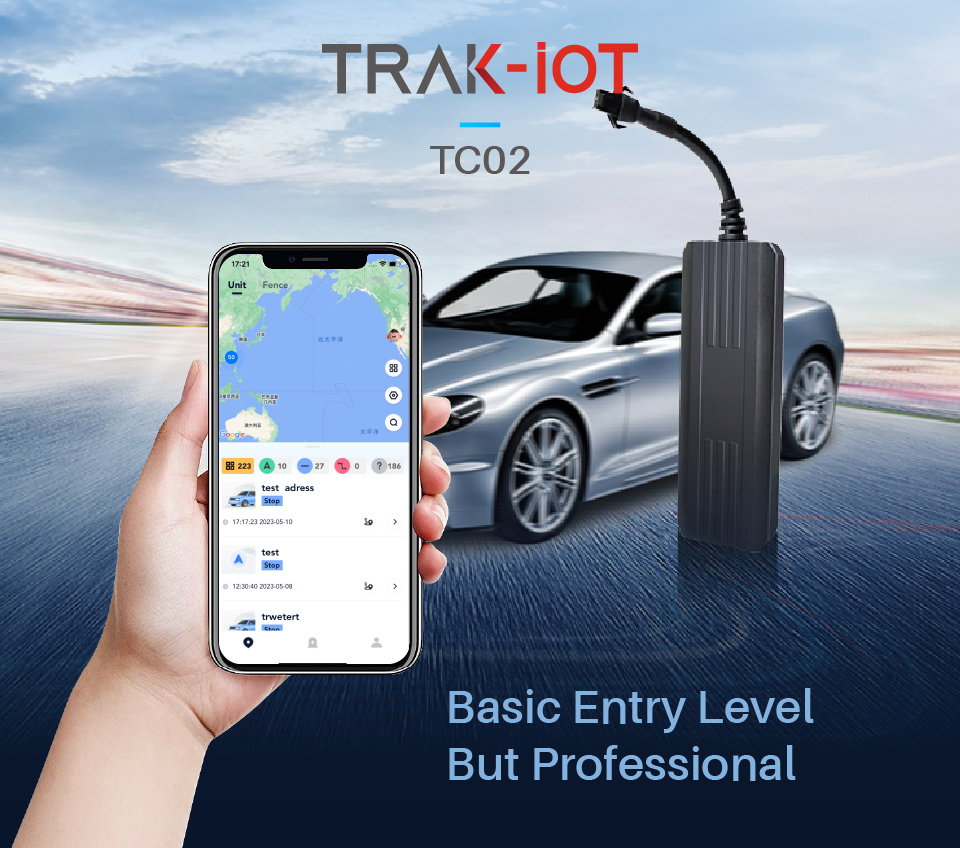




 English